🚚 US: Fast, Free Shipping Within 5 Days 🚚 US: Fast, Free Shipping Within 5 Days
💰 30-Day Money-Back Guarantee 💰 30-Day Money-Back Guarantee
🔧 Up to 10-Year Warranty Available 🔧 Up to 10-Year Warranty Available
0

Your Projects, Digitalized

Turn field measurements,
photos, and layouts into organized project records.

*Supports multiple languages. Currently compatible with S50 and S50C only.

Digital Project Management

Manage Every Job from One
Organized App

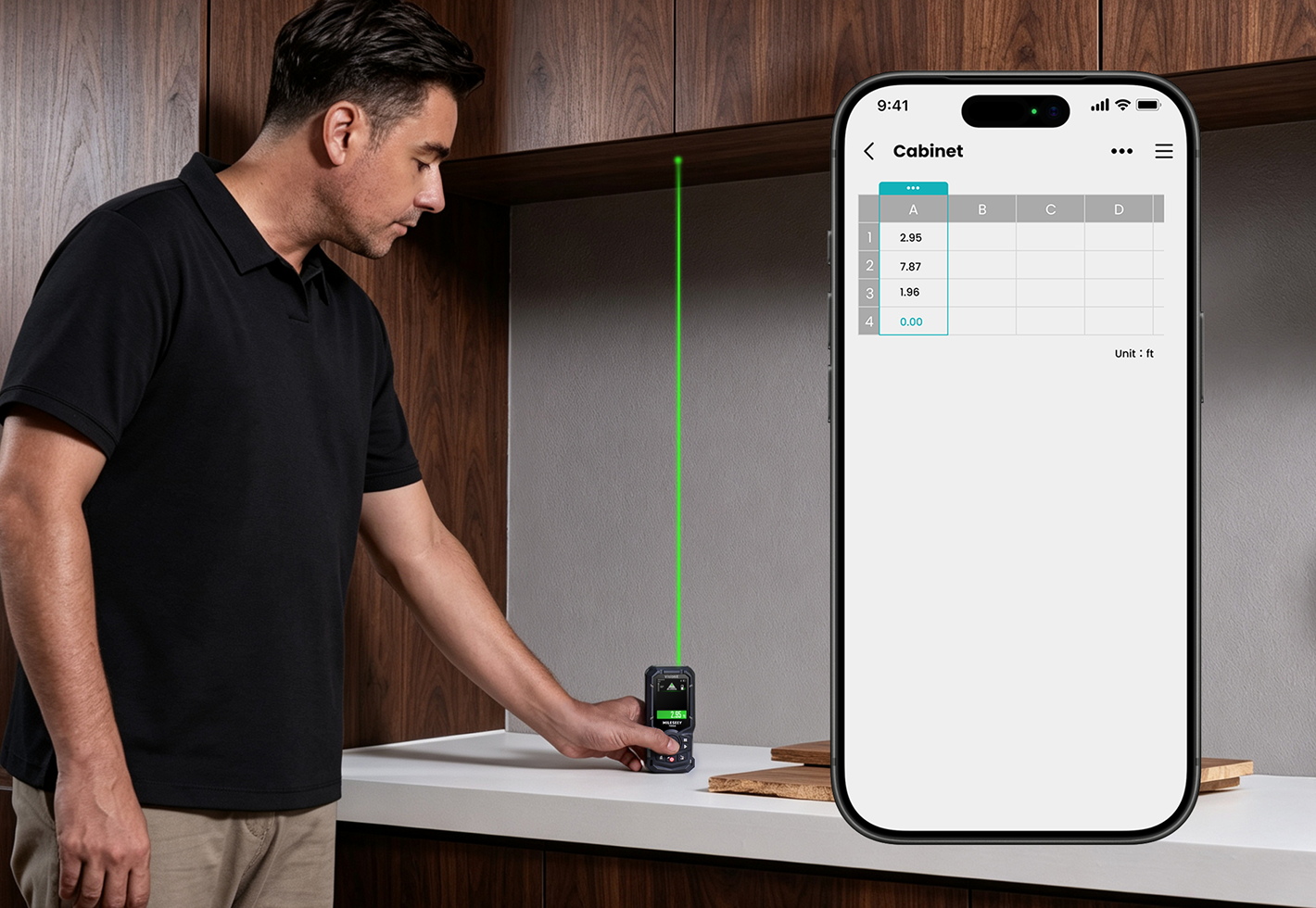
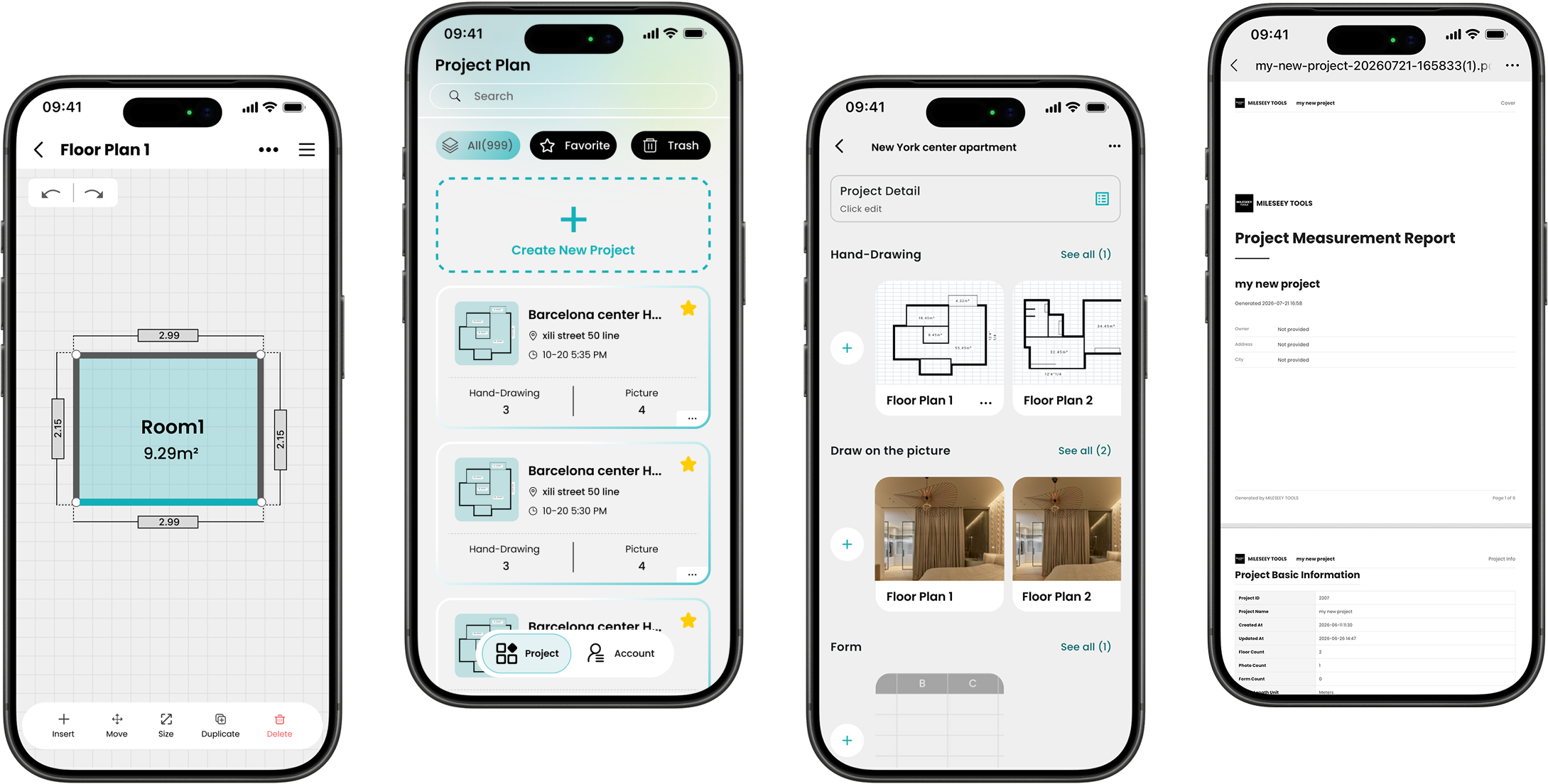
Measure, plan, and document every job from one app. Turn scattered notes
and screenshots into clear project files you can review, reuse, and share.

Real-time Sync & Cloud Backup

Synced Instantly. Stored Securely.

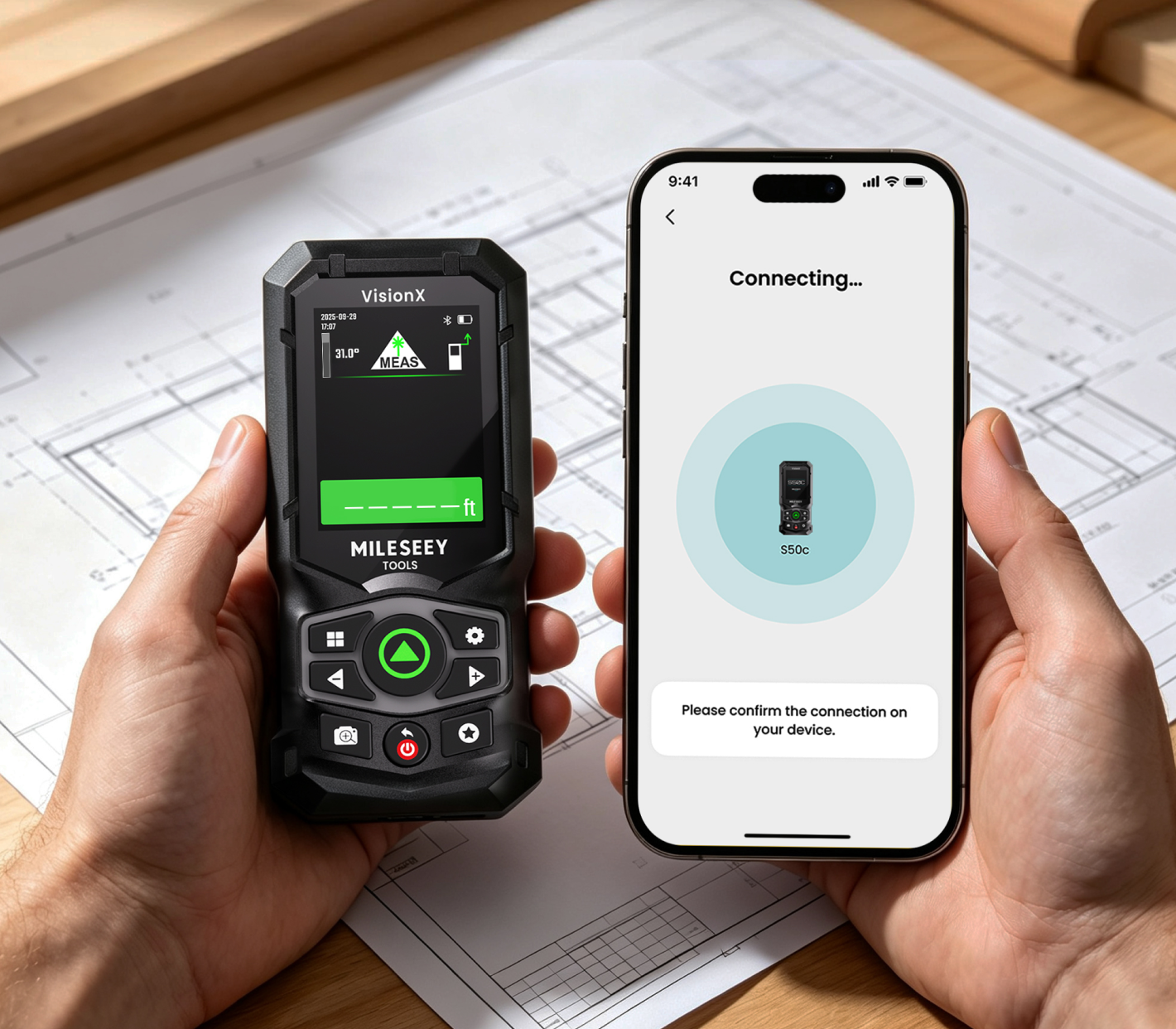
Sync measurements to the app via Bluetooth and back up to the cloud, so your project data stays organized and easy to access.

2D Floor Plans & Project Layouts

Build Clearer
Layouts as You Work

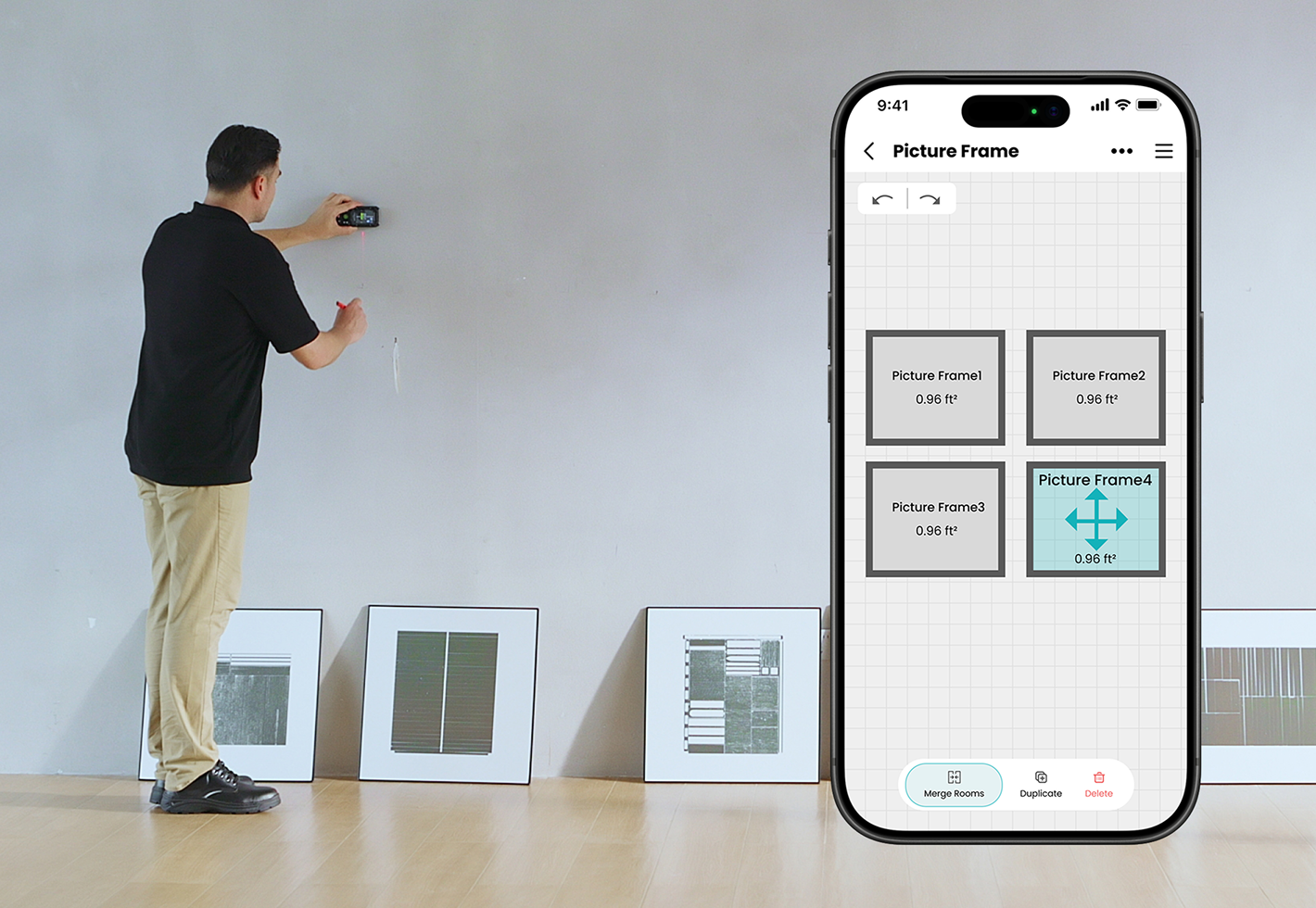
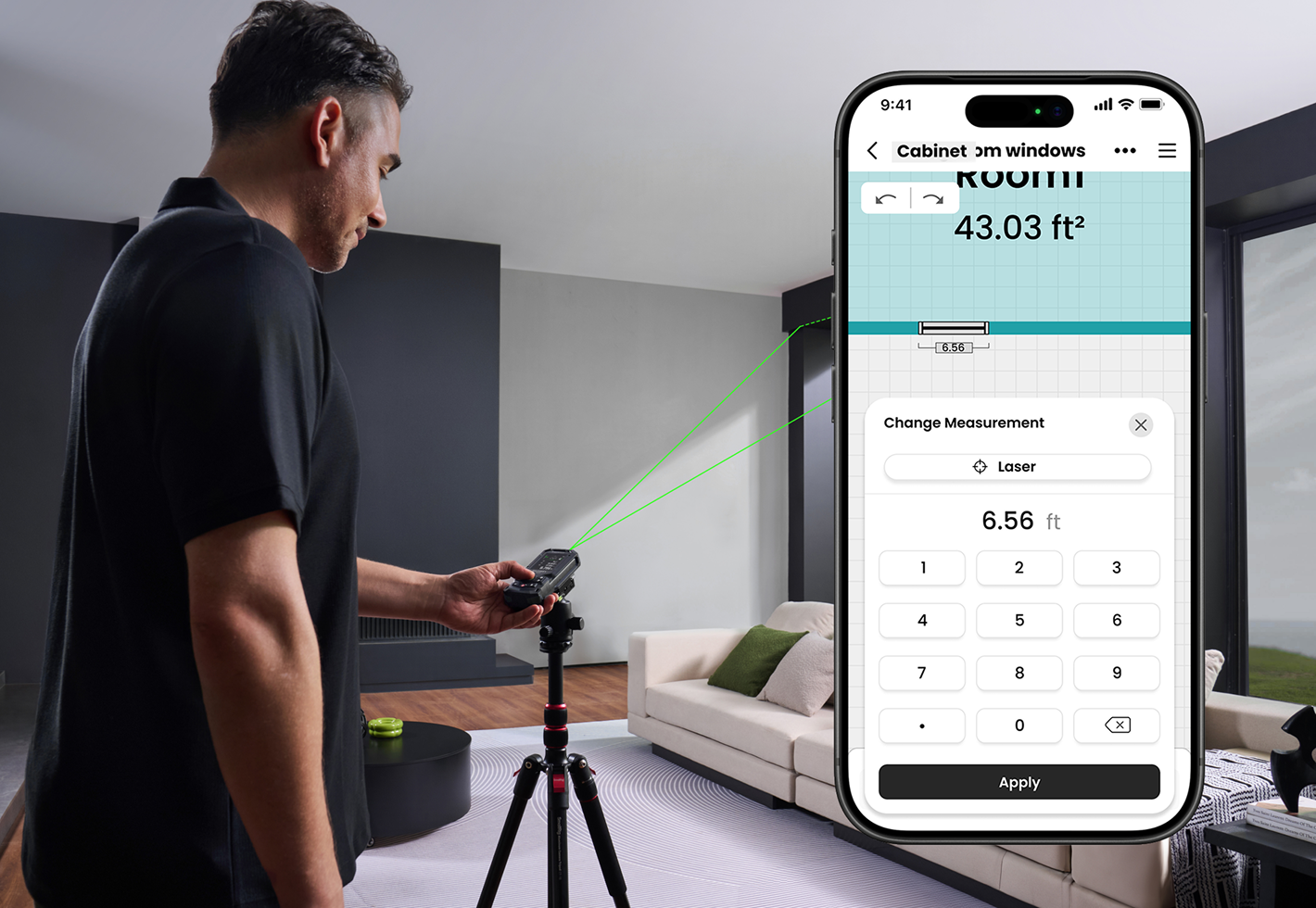
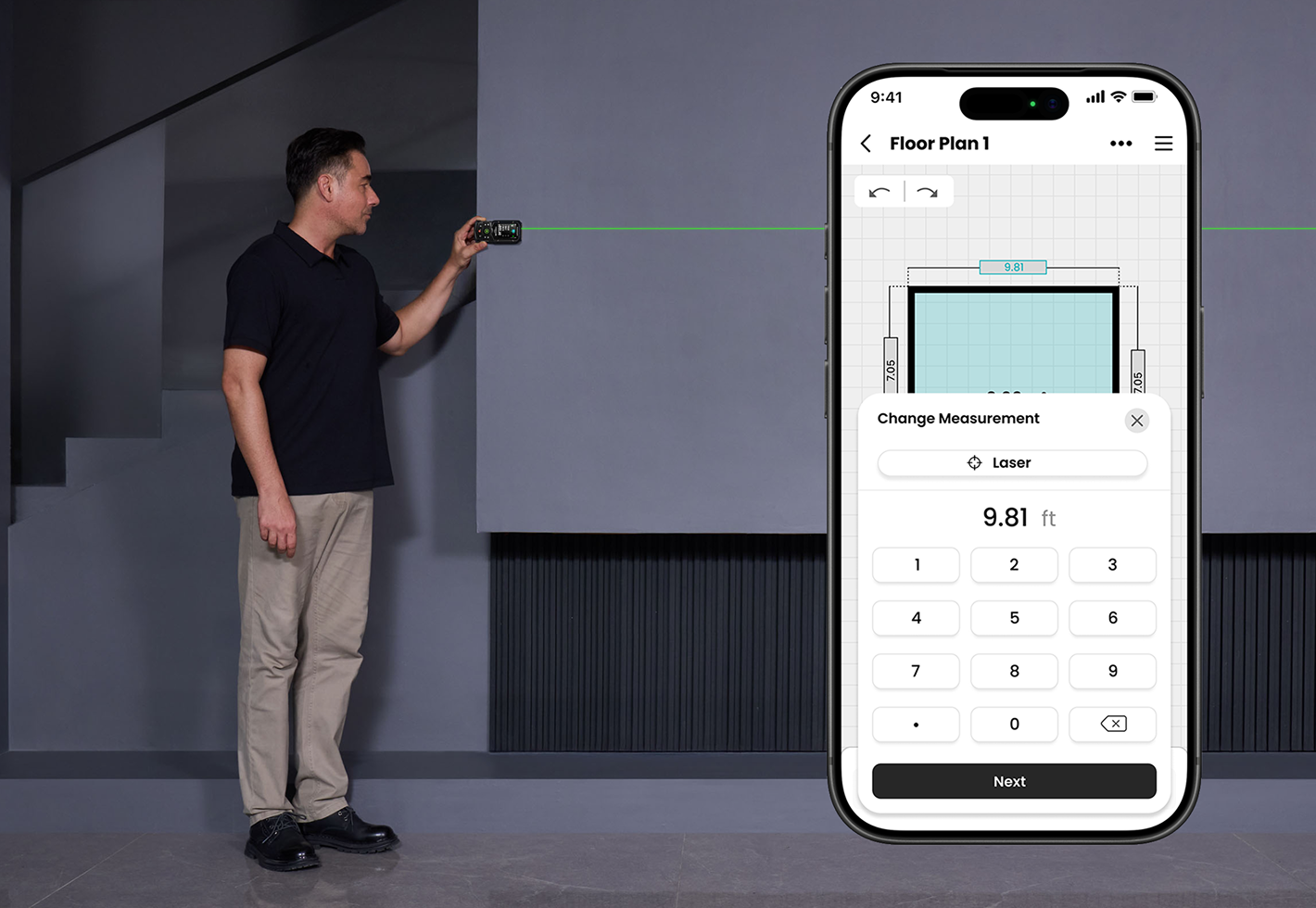
Assign measurements to the rooms, walls, or zones, and keep your 2D layouts updated as the job progresses.

Professional Reports & Documentation

Create Organized Reports from Every Project Detail

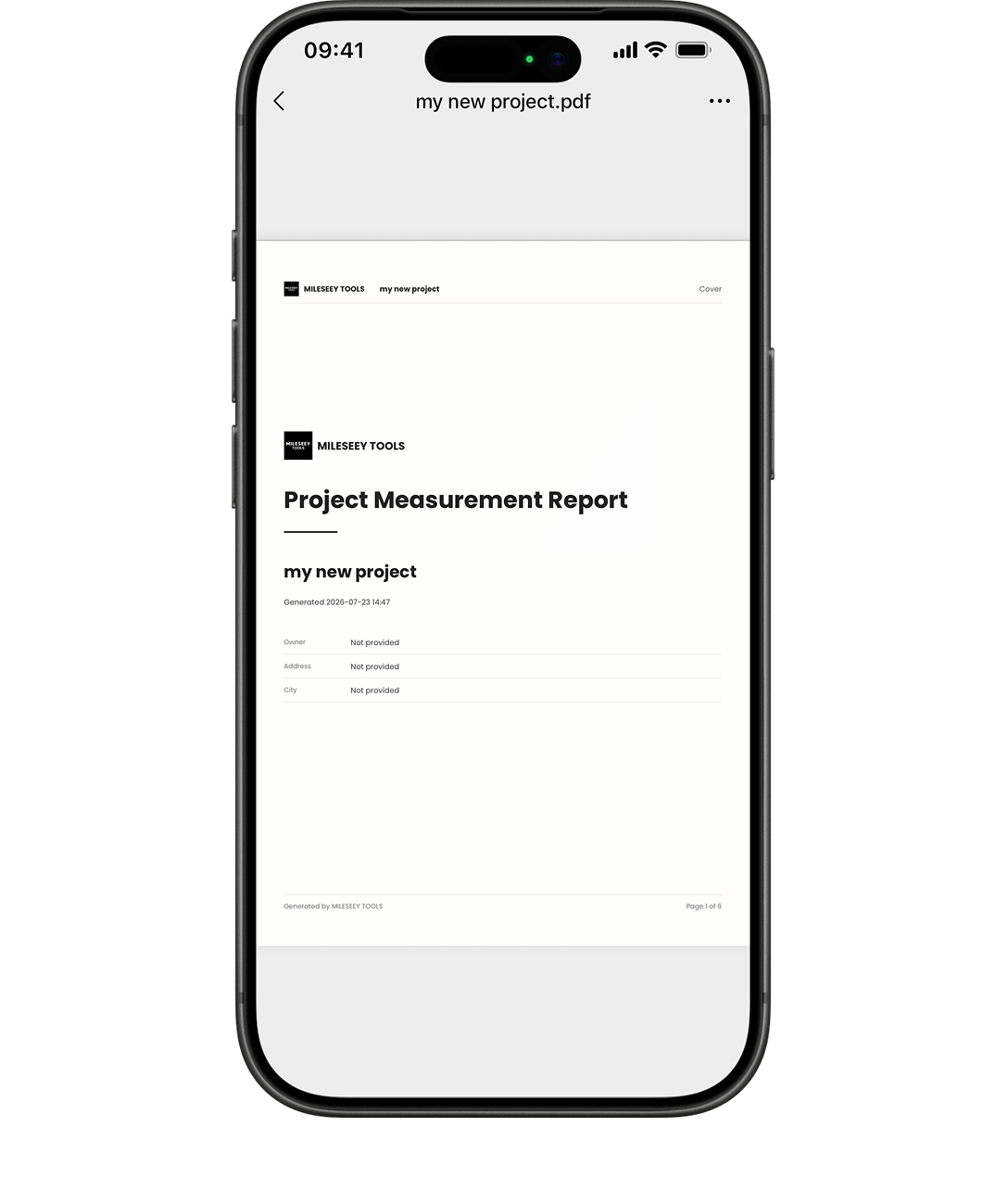
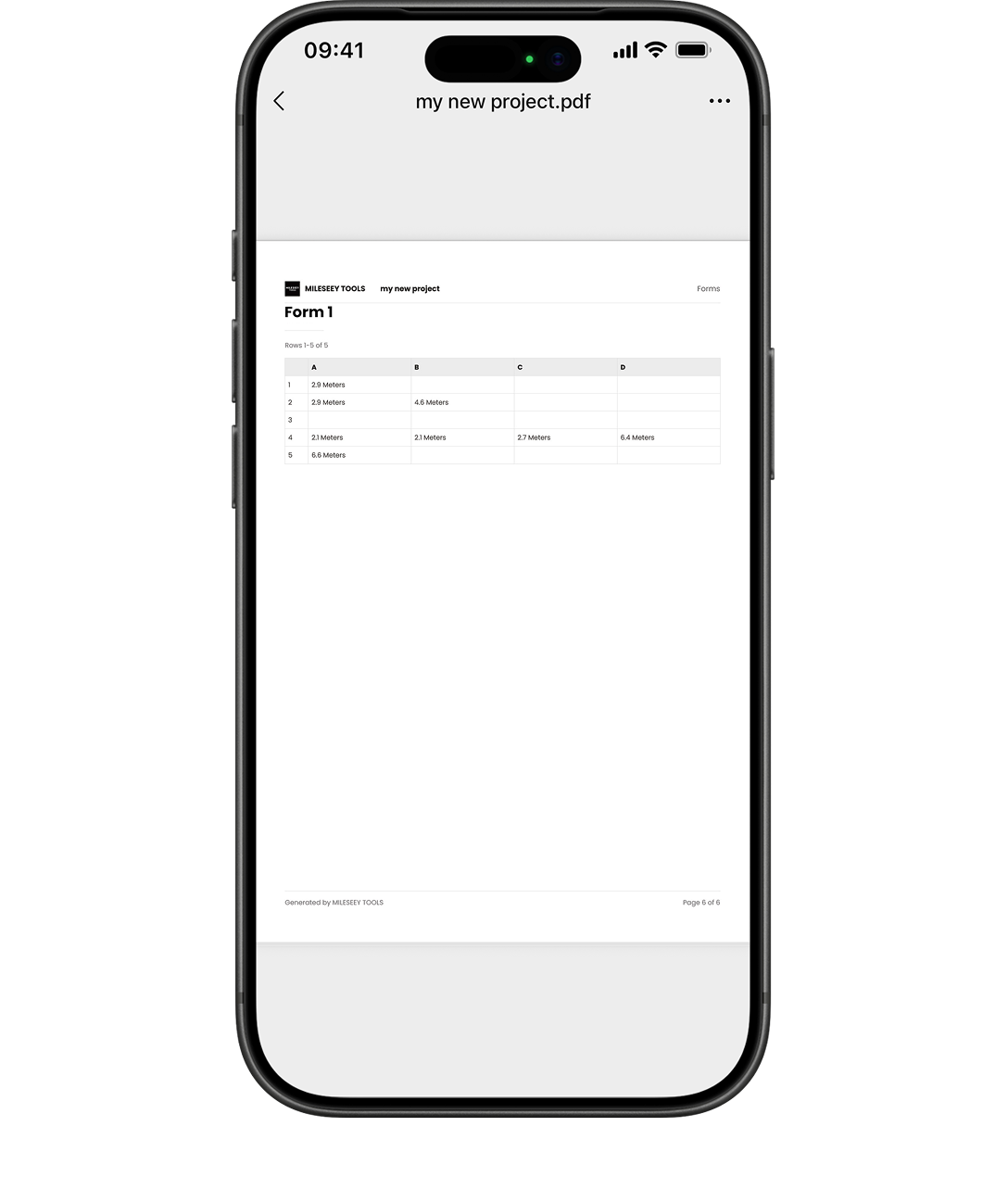
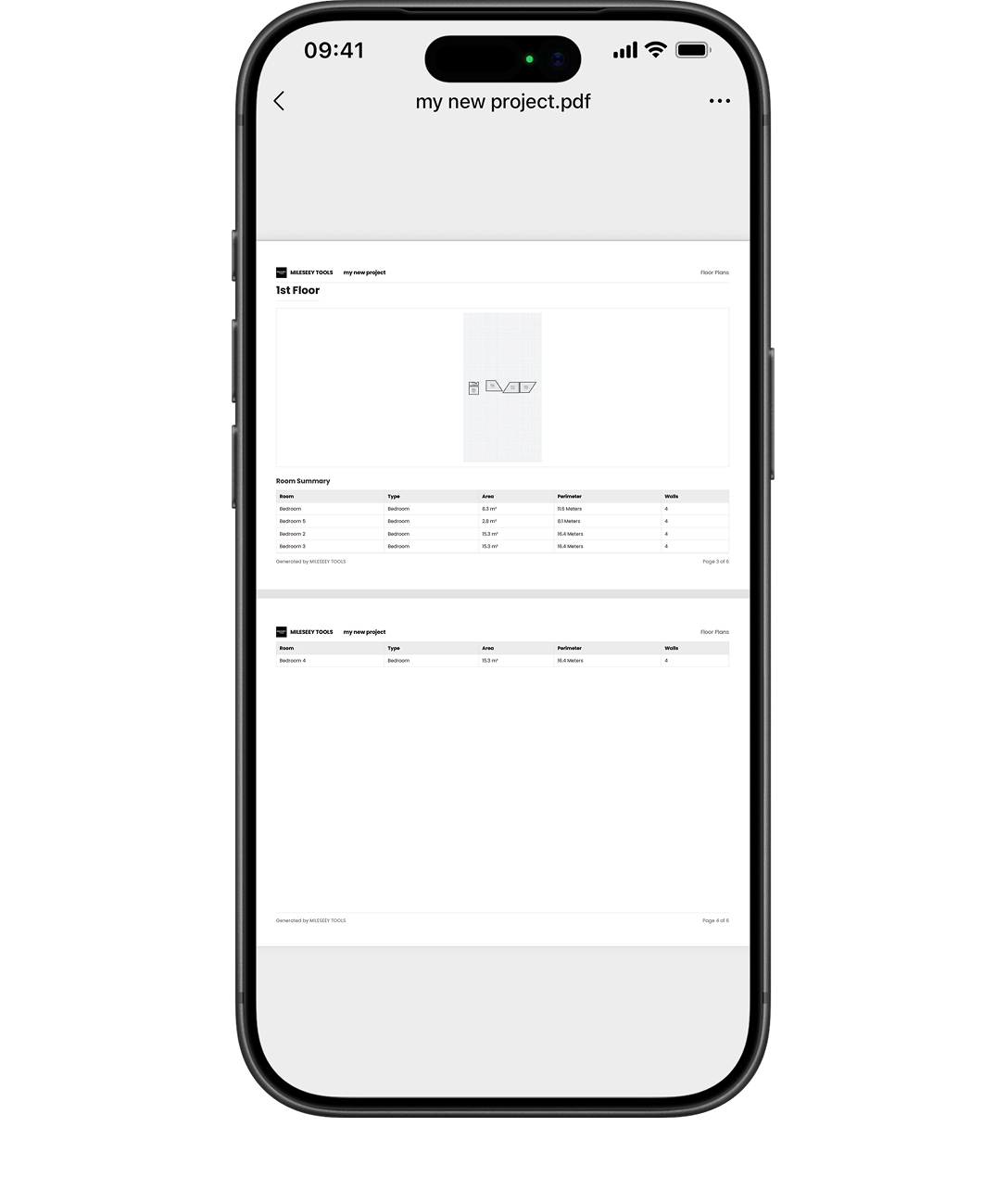
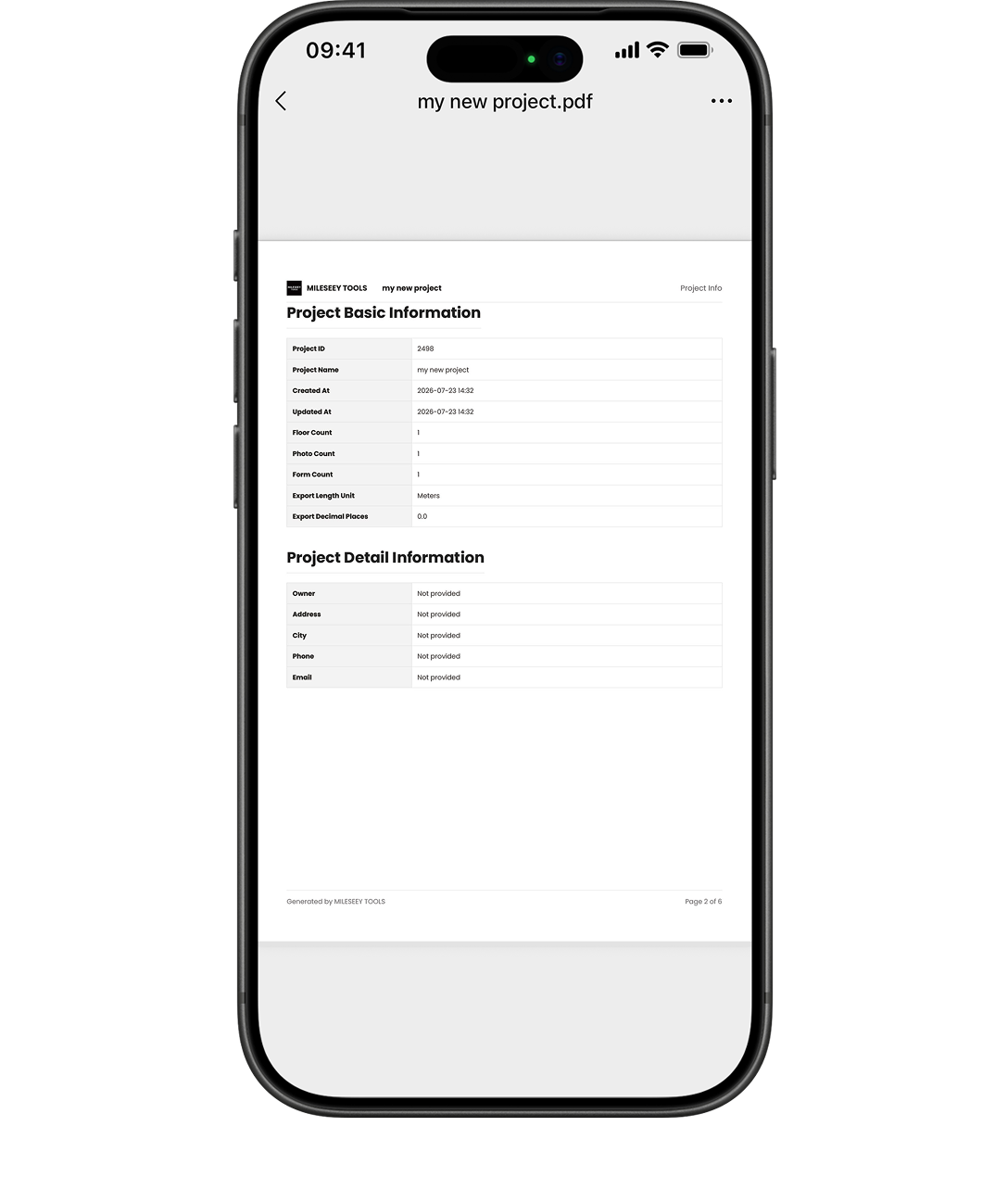
Combine data, photos, floor plans, and forms into one organized PDF report that's ready to review and share. 

On-Site Photo Documentation

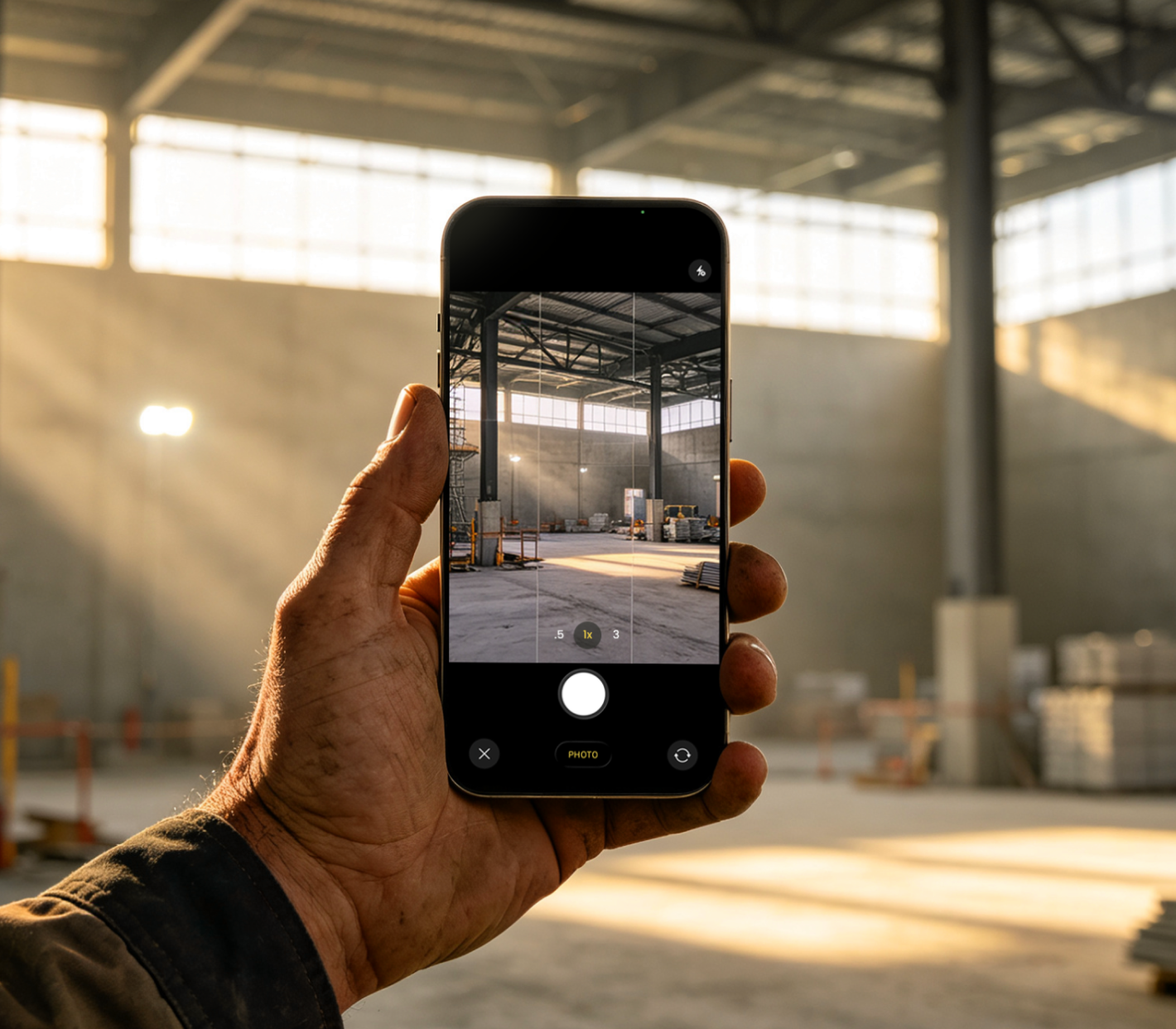
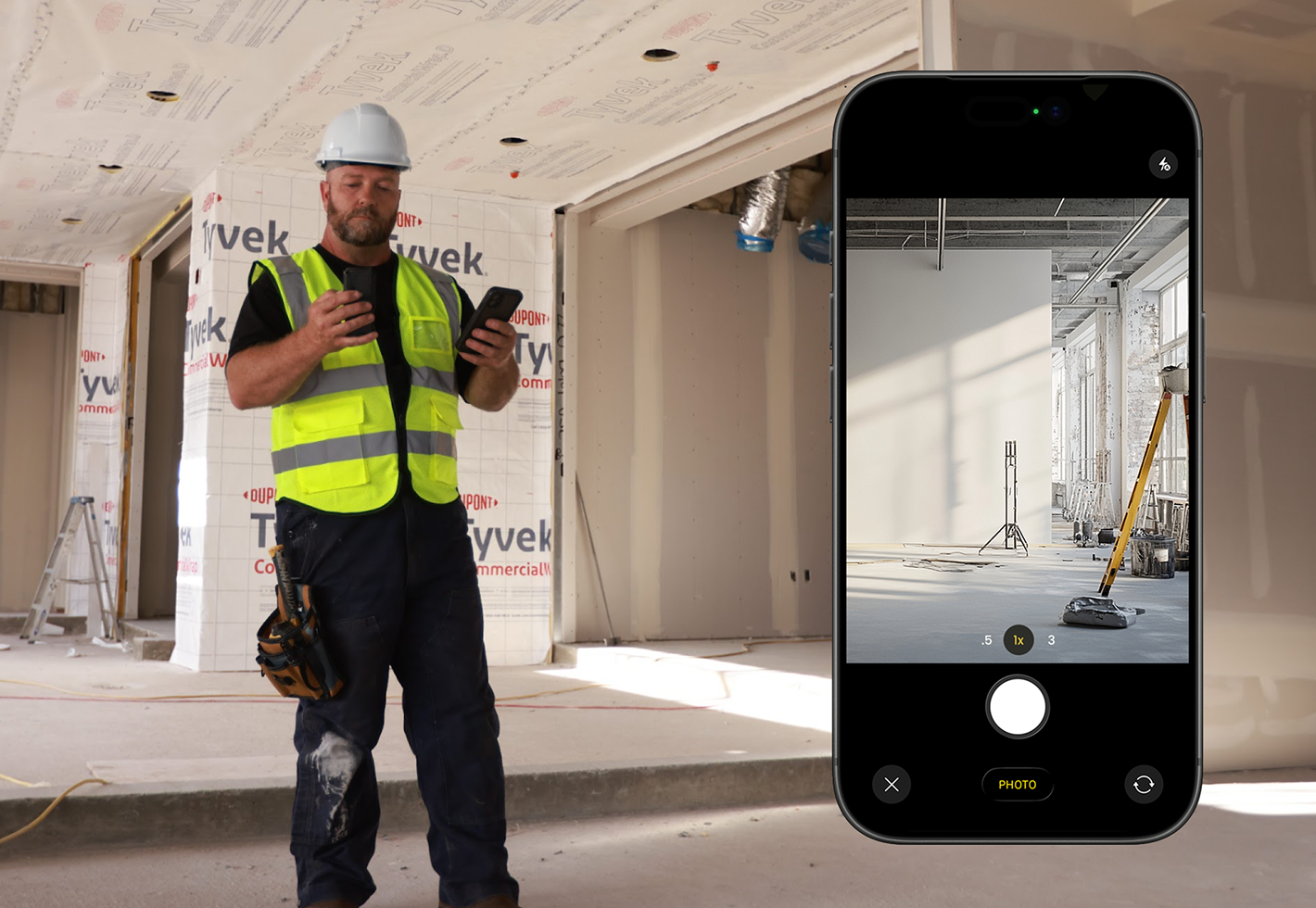
Capture or upload site photos and keep them connected to the right project.

Connected Device Management

Pair and manage your device from the app, so setup and reconnecting stay quick and effortless.

OTA Firmware Updates

Update device firmware through the app to keep your device optimized over time.

More Ways to
Work Smarter

Built for Real-World Projects

MILESEEY TOOLS helps turn on-site work into a clearer digital workflow, keeping project records easier to manage from start to finish.

Your Project Data Stays Yours

Stay informed about what is collected, how it is used, and how your project records are managed in the app.

Get the
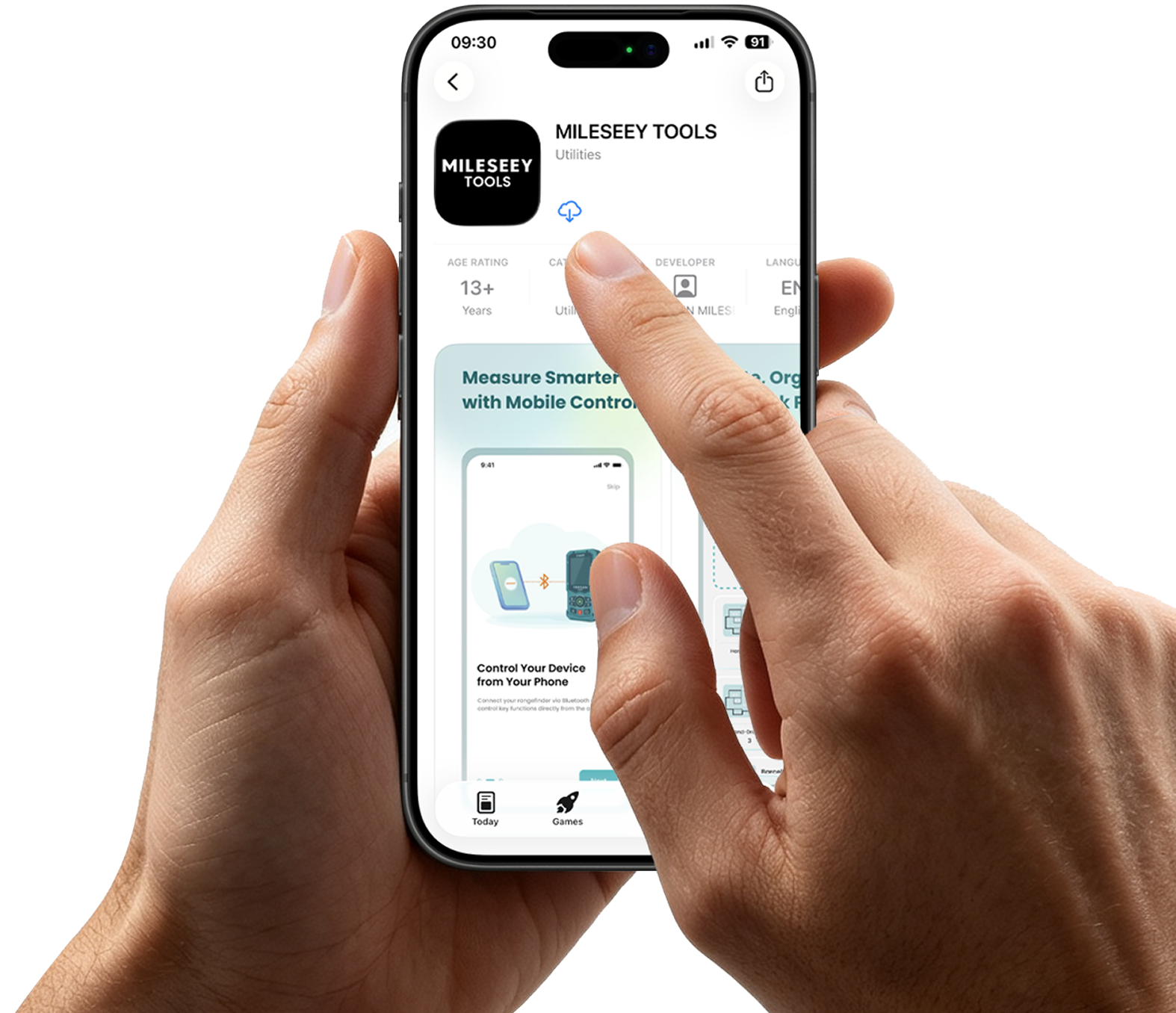
MILESEEY TOOLS App

Manage measurements, photos, layouts,and project records from your phone. 

Account

Bluetooth Connection

Feature

How do I create a MILESEEY TOOLS account?
Open the MILESEEY TOOLS App and select Sign Up at the bottom. Enter your email address, password, and verfication code from your email account. Then follow the on-screen instructions to complete following registration process.
Do I need an account to use the MILESEEY TOOLS App?
Yes. An account is required to access your project workflow, helping keep your project data associated with your profile when you sign in next time.
What should I do if I cannot sign in?
First, make sure you are using the email address registered with your MILESEEY TOOLS account and check that your password has been entered correctly.

Also confirm that your phone has a stable internet connection and that you are using the latest version of the app. If the problem continues, use the forget password option or contact us under Support.
What should I do if I do not receive a verification or password reset email?
Check your spam, junk, and promotions folders first. Make sure the email address was entered correctly, then wait a few minutes before requesting another email.
 
If you still do not receive it, try again with a stable internet connection or contact us under Support.
Which MILESEEY devices are compatible with the apps?
The MILESEEY TOOLS App currently supports the S50 and S50C. Compatibility may expand over time, so please check the latest app download.
How do I connect with MILESEEY TOOLS App?
Turn on Bluetooth on both your phone and compatible device, then tap the Bluetooth icon on the Project Plan page or go to Account > My Device, then press "+" to start searching and pairing with device.
Why can’t the app find my device?
Check the following:
· Bluetooth is enabled on both your phone and the device.
· The device is powered on and close to your phone.
· The app has permission to access Bluetooth and nearby devices.
· The device is not actively connected to another phone or app.
· Both the app and the device firmware are up to date.
 
If the device still does not appear, restart your device, toggle your phone’s Bluetooth off and on, and search again. Bluetooth or location permission may be required depending on your phone and operating system.
How do I create a new project?
From the app’s project page, tap "Create New Project".
Enter or edit the project name in the upper-right corner, then complete the available fields under Project Detail. Save the information to begin adding floor plans, rooms, photos, forms, and measurements.
How do I add a floor and create a room?
1. Open your project and locate the Hand-Drawing section.
2. Tap "+" to add a floor, then tap "+ Insert". Select Room to draw the room wall by wall, or select Photo to take a new photo or upload an existing image for project documentation.
How do I transfer measurements to a floor plan?
Select a room, tap a wall, then tap the corresponding measurement value. Start your measurement on your device, and the reading will transfer instantly. Repeat the process for the remaining dimensions.
Can I add photos and forms to a project?
Yes. You can take or upload on-site photos and keep them with the relevant project.
You can also tap "+" in the Form section to add a form and transfer measurements directly into the selected fields. This keeps visual records, measurements, and project information together in one workspace.
Is the MILESEEY TOOLS App Free?
Yes, it is completely free to download and use.
View More View Less